Echo Vision Uploader
tags: platform mobile echo-vision auditor
A simple guide for auditors using the Echo Vision Uploader app to import recordings from Echo Vision microphones and sync them to the server.
Install
- Android: Download APK
Contents
- Login
- Home
- Import — Select the Echo Vision Folder
- Import — Review Files
- Moving Files (Safe to Unplug)
- Syncing — Convert & Upload
- Activity — Track Sync
- Stats
- Settings
- Quick Flow Recap
- Troubleshooting
1. Login
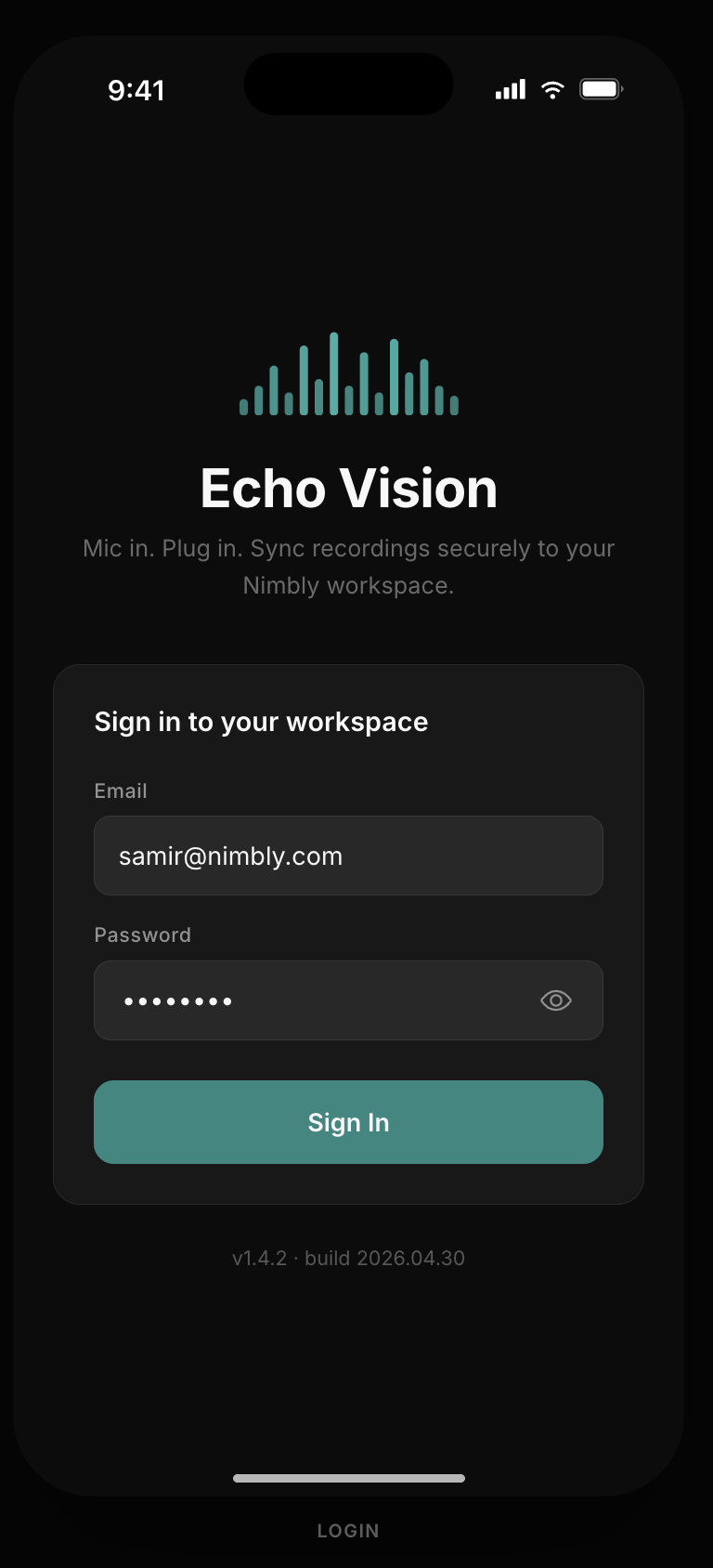
- Open the app.
- Enter your email and password.
- Tap Sign In.
Notes:
- Multiple auditors can use the same device.
- The same auditor account can be signed in across multiple phones/tablets at the same time.
- Session refreshes automatically; you stay signed in until you sign out.
2. Home
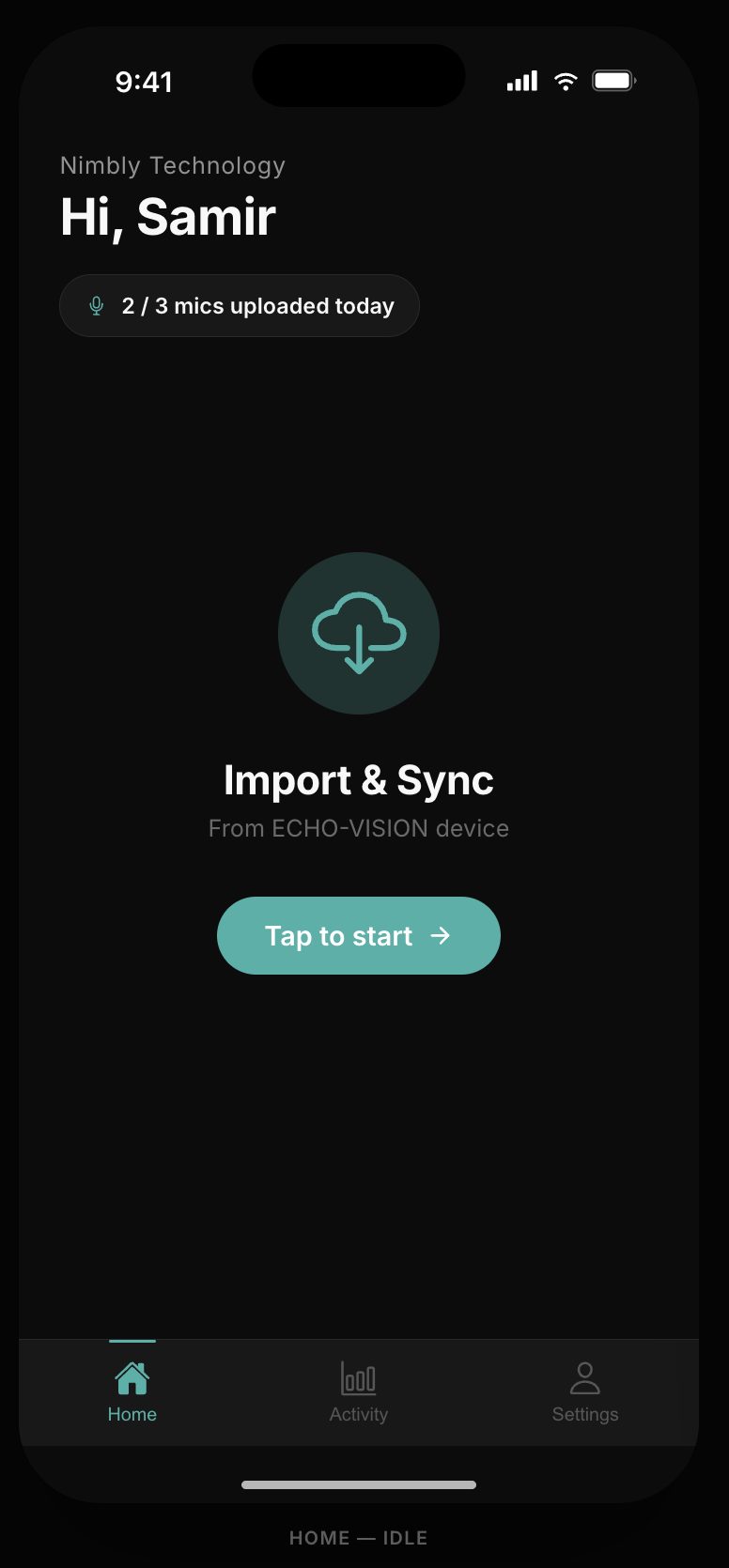
The home screen shows:
- Your name and organization.
- Upload status banner — live state: queued, uploading (with progress), all done, or failed.
- A large Import button — start point for every import session.
Bottom tabs: Home · Activity · Stats · Settings.
3. Import — Select the Echo Vision Folder
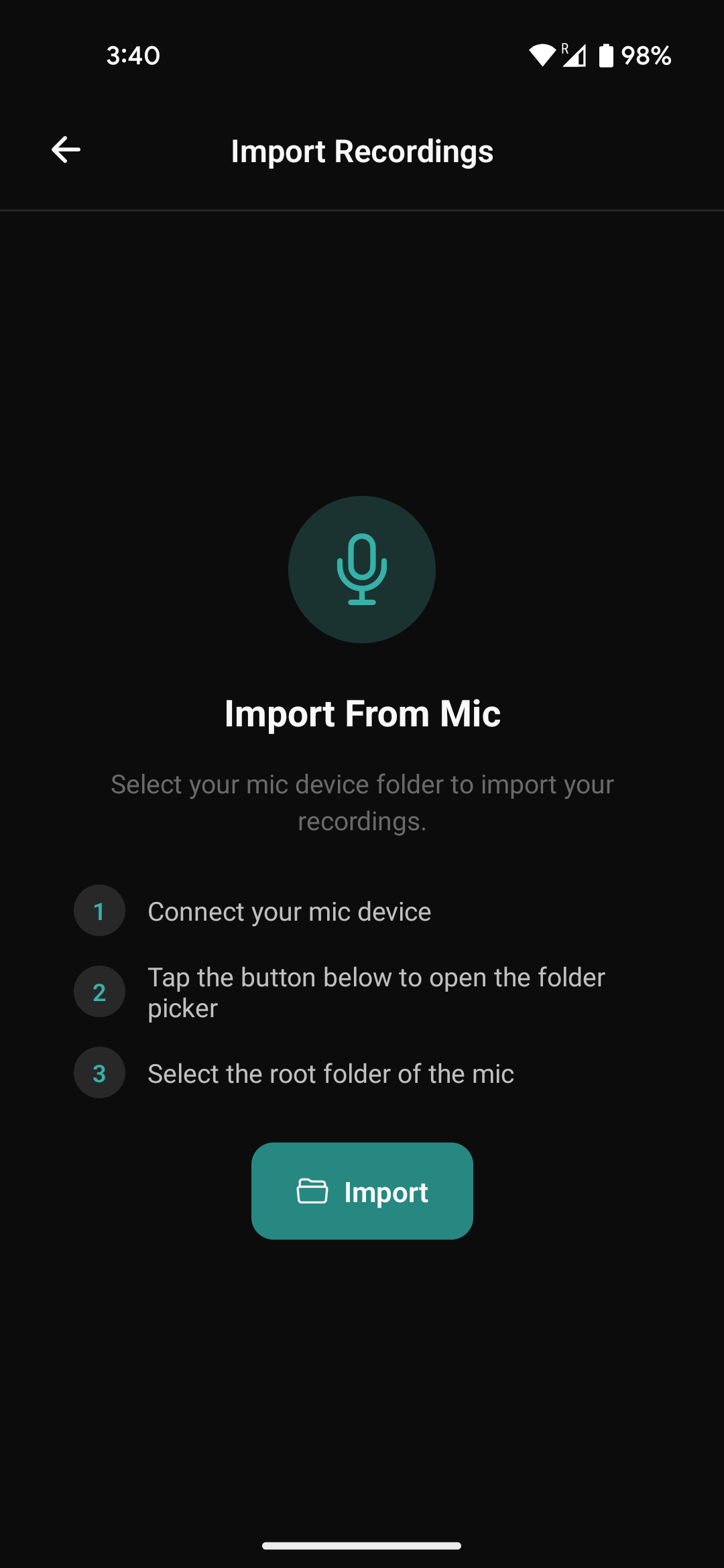
- Plug the Echo Vision microphone into the phone via USB.
- On the home screen, tap Import.
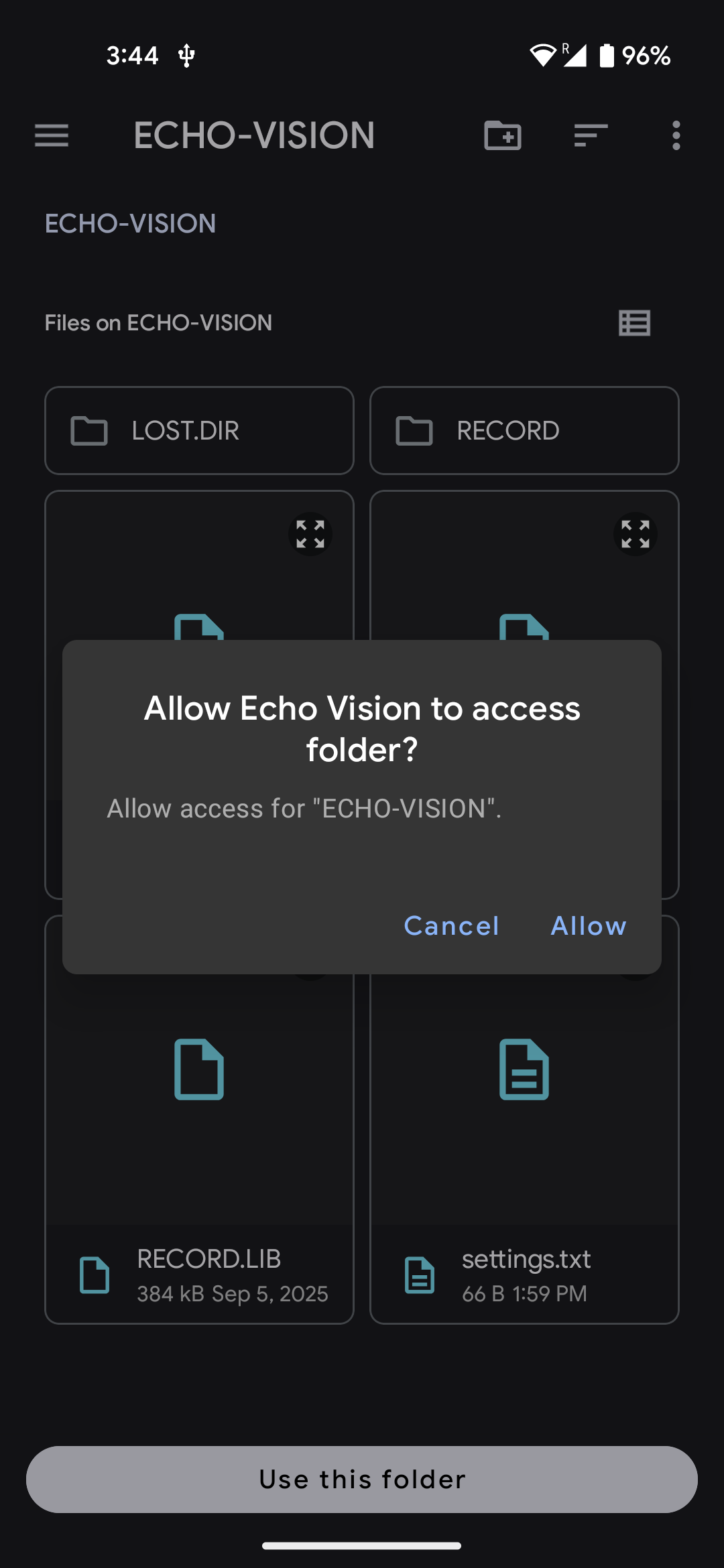
- Tap Select Folder and choose the Echo Vision parent folder on the connected device.
- Android remembers this folder for next time.
- iOS asks each session.
- Grant storage permission if prompted.
You can plug in multiple mics one after another — finish one, then tap Add Another Device to continue with the next.
4. Import — Review Files
The app scans the folder and lists all .WAV recordings:
- New files — selected for import.
- Duplicates — already imported, shown grayed out and skipped.
- A summary banner shows total files and number of source devices.
Tap Import All to start.
5. Moving Files (Safe to Unplug)
The app copies recordings from the mic to the phone’s local storage. A progress bar shows copy progress.
When copying finishes:
- Source files on the mic are deleted automatically.
- A “Safe to Unplug” confirmation appears.
- You can now disconnect the USB device and either plug in another mic or move on to syncing.
6. Syncing — Convert & Upload
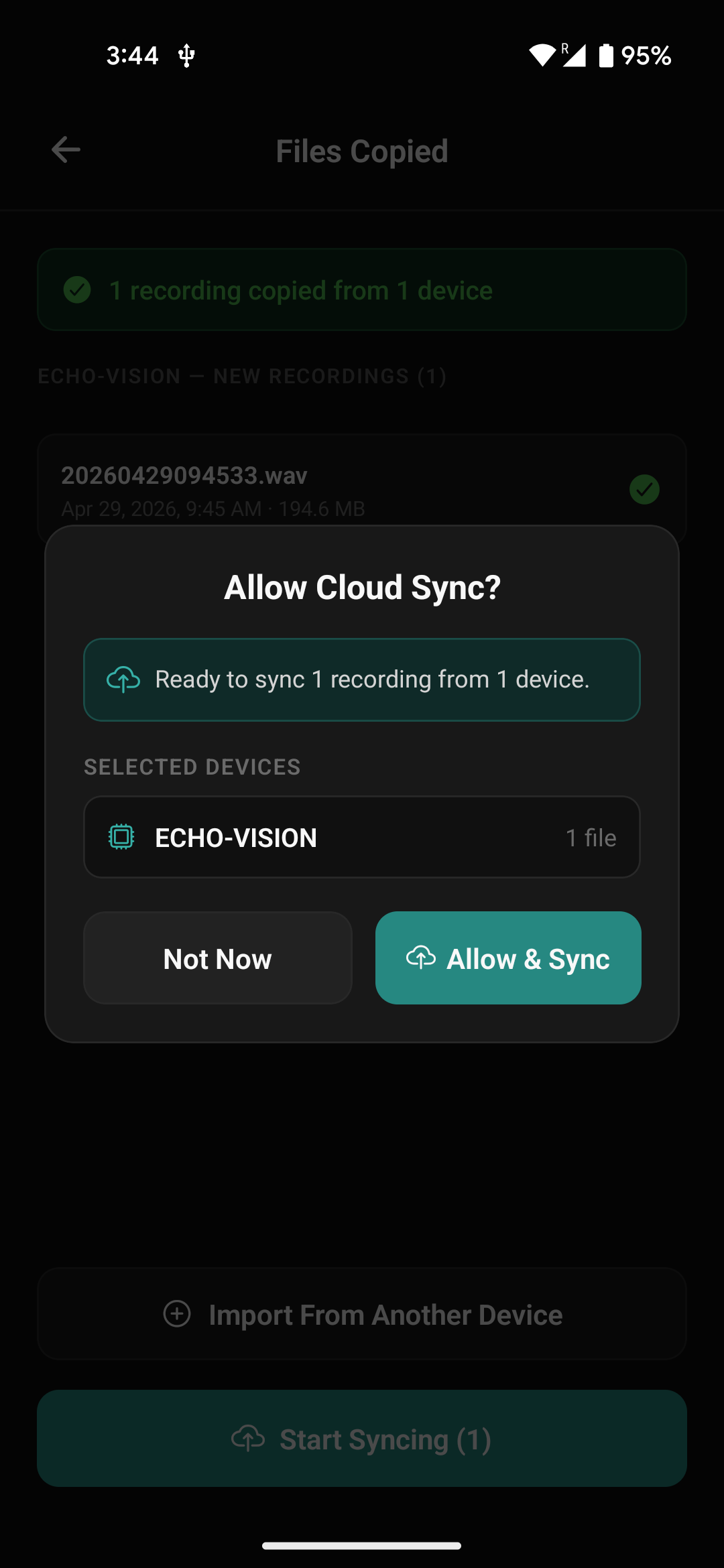
After importing, the app uploads recordings to the server in two stages:
- Converting — WAV files are converted to AAC (64 kbps, speech‑optimized) for fast upload using on-device hardware acceleration.
- Uploading — converted files are uploaded to cloud storage in 5 MB chunks (resumable multipart).
Notifications:
- Android shows a persistent progress notification on the lock screen.
- iOS shows local progress notifications.
- Completion plays a sound and shows “X files uploaded” (green) or “X uploads failed” (red).
Background behavior:
- Uploads continue when the app is backgrounded.
- If the app is closed or killed, the queue is saved. On reopen, syncing resumes from the last checkpoint.
- Failed files surface a Retry All button.
7. Activity — Track Sync
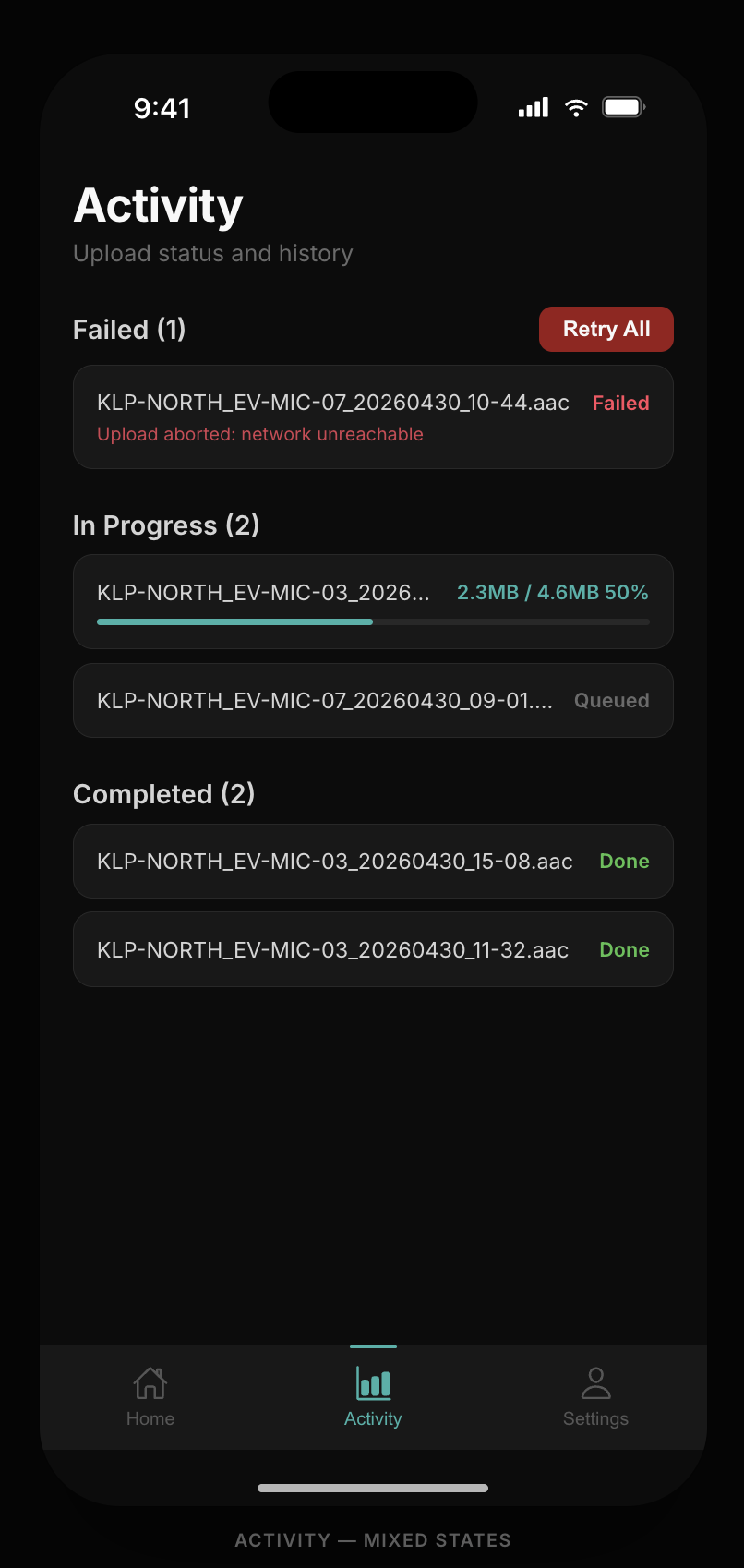
The Activity tab is the live status board:
- Sync progress — current convert/upload step with progress bar.
- Pending — files waiting to upload.
- In progress — files uploading now, with percentage.
- Failed — errors per file, with Retry All.
- Completed — successfully uploaded files.
Once all files are completed, local cached copies are cleaned from the phone automatically.
8. Stats
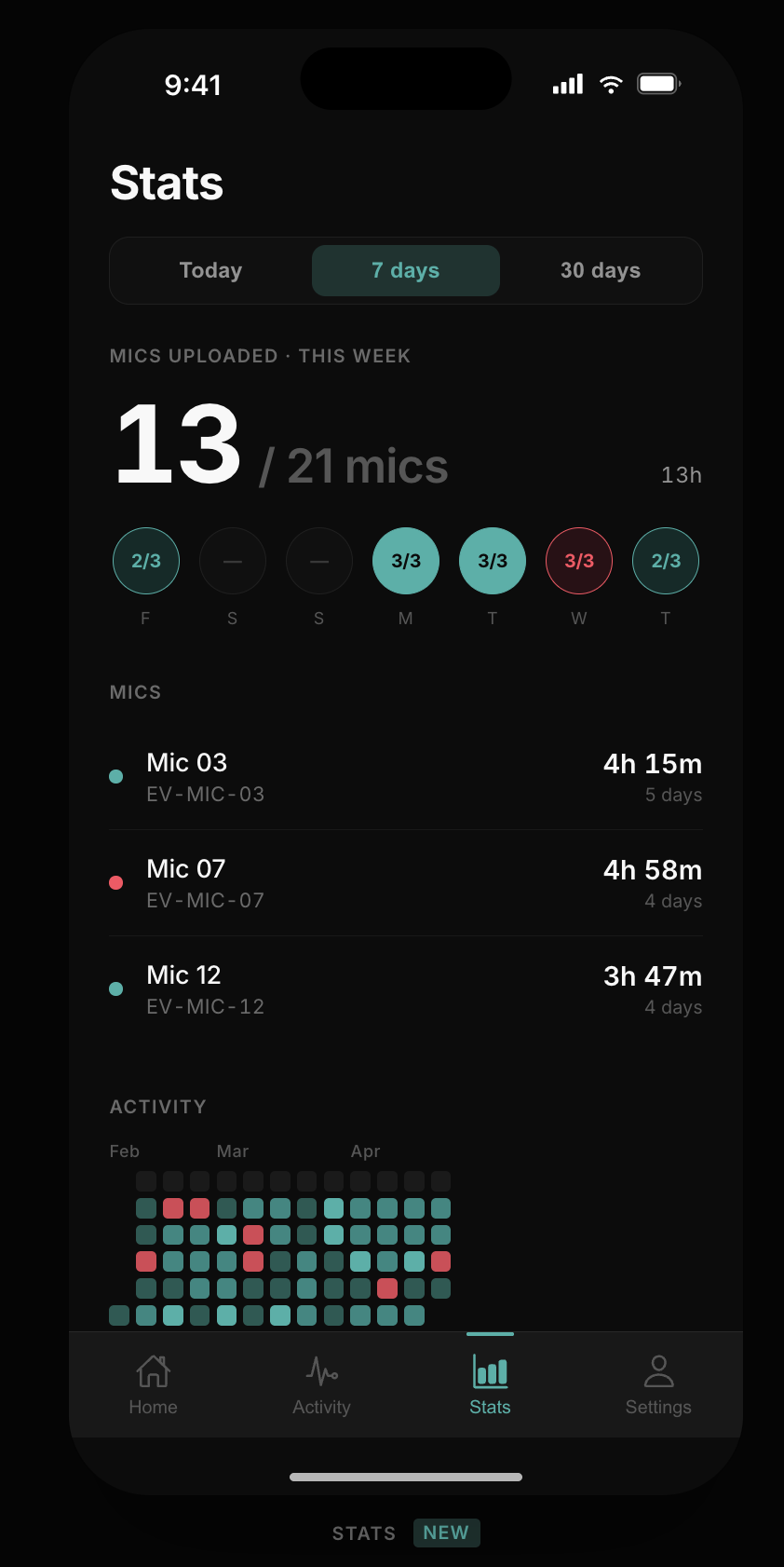
A site-level view of recording coverage:
- Today’s coverage — e.g.,
2/5 mics uploaded · 4h 30m. - Range switcher — Today, 7 days, 30 days.
- 7‑day heatmap — daily mic coverage at a glance.
- Mic list — per-mic status, total minutes, active days.
- 84‑day activity heatmap — tap any day to see a per‑mic breakdown (status, clip count, duration, failures).
Use this page to confirm every mic uploaded its recordings as expected.
9. Settings
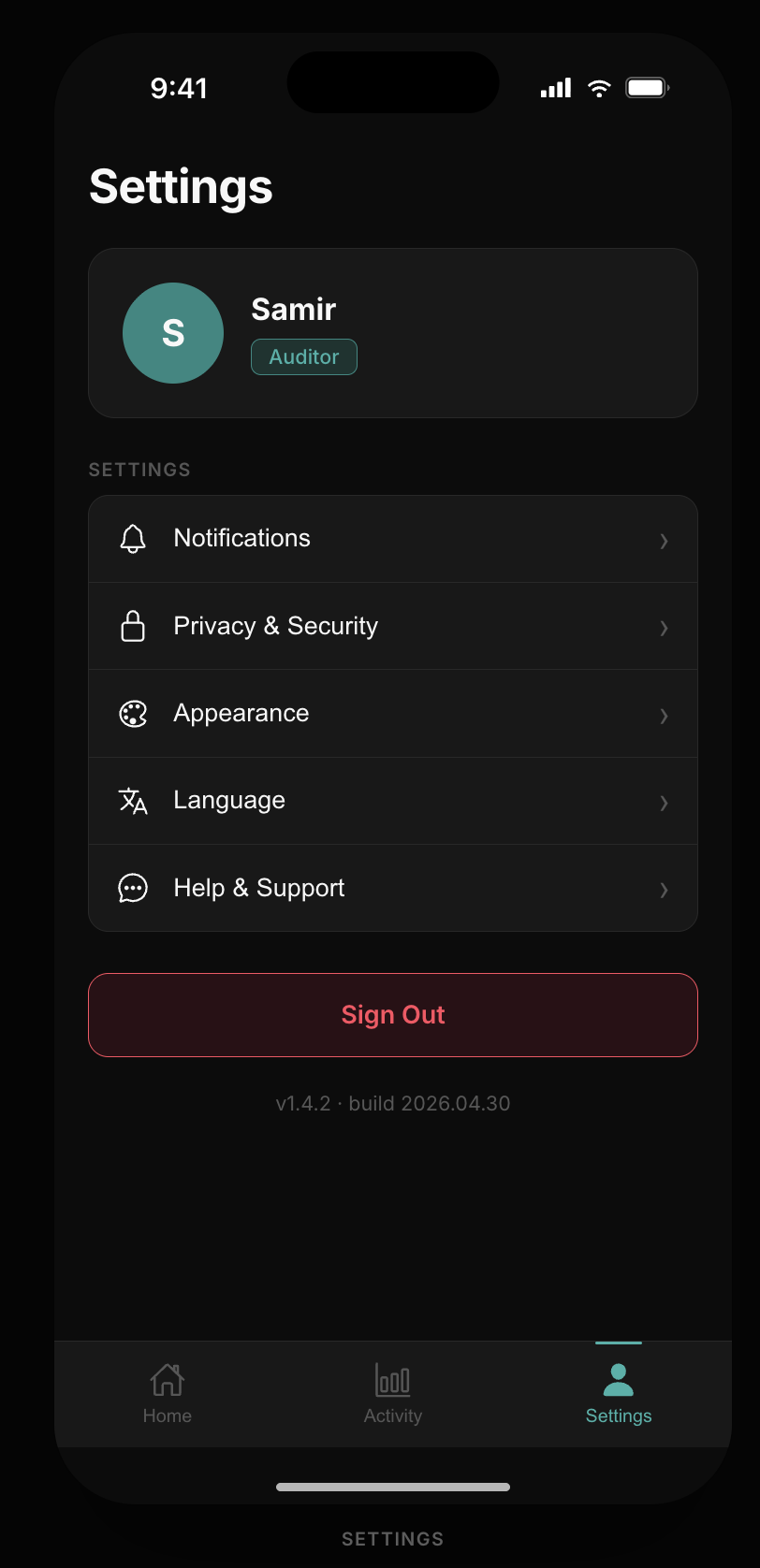
- Profile — avatar, name, email, role.
- Privacy & Security — privacy policy.
- Language — pick a UI language; saved to your account.
- Help & Support — support info.
- Sign Out — logs out and returns to the login screen. Sign out before handing the phone to another auditor.
- Version — current app version (useful when reporting issues).
Quick Flow Recap
- Sign in with your auditor account.
- From Home, tap Import.
- Select the Echo Vision folder on the connected mic.
- Review files → Import All.
- Wait for Safe to Unplug → disconnect mic (repeat for more mics).
- Sync converts and uploads in the background; notifications keep you posted.
- Verify success in Activity and Stats.
- Sign out from Settings when done.
Troubleshooting
| Issue | What to do |
|---|---|
| App can’t see the mic folder | Reconnect USB cable, re-grant storage permission, tap Select Folder again. |
| Upload failed | Open Activity → Retry All. Check Wi‑Fi/data. |
| Sync paused after closing app | Reopen the app — it resumes automatically. |
| Wrong account on device | Settings → Sign Out, then sign in again. |
| Need version info for support | Settings → bottom of page. |
Related
- Echo Vision Admin — web app for org/site/mic/report management.